Use this checklist to confirm that a representative buyer path still works and to preserve useful evidence if it does not.
An update can finish without an obvious error, yet product, cart, shipping, payment, or order flow may no longer work as expected. A loading homepage does not prove that a buyer can complete checkout.
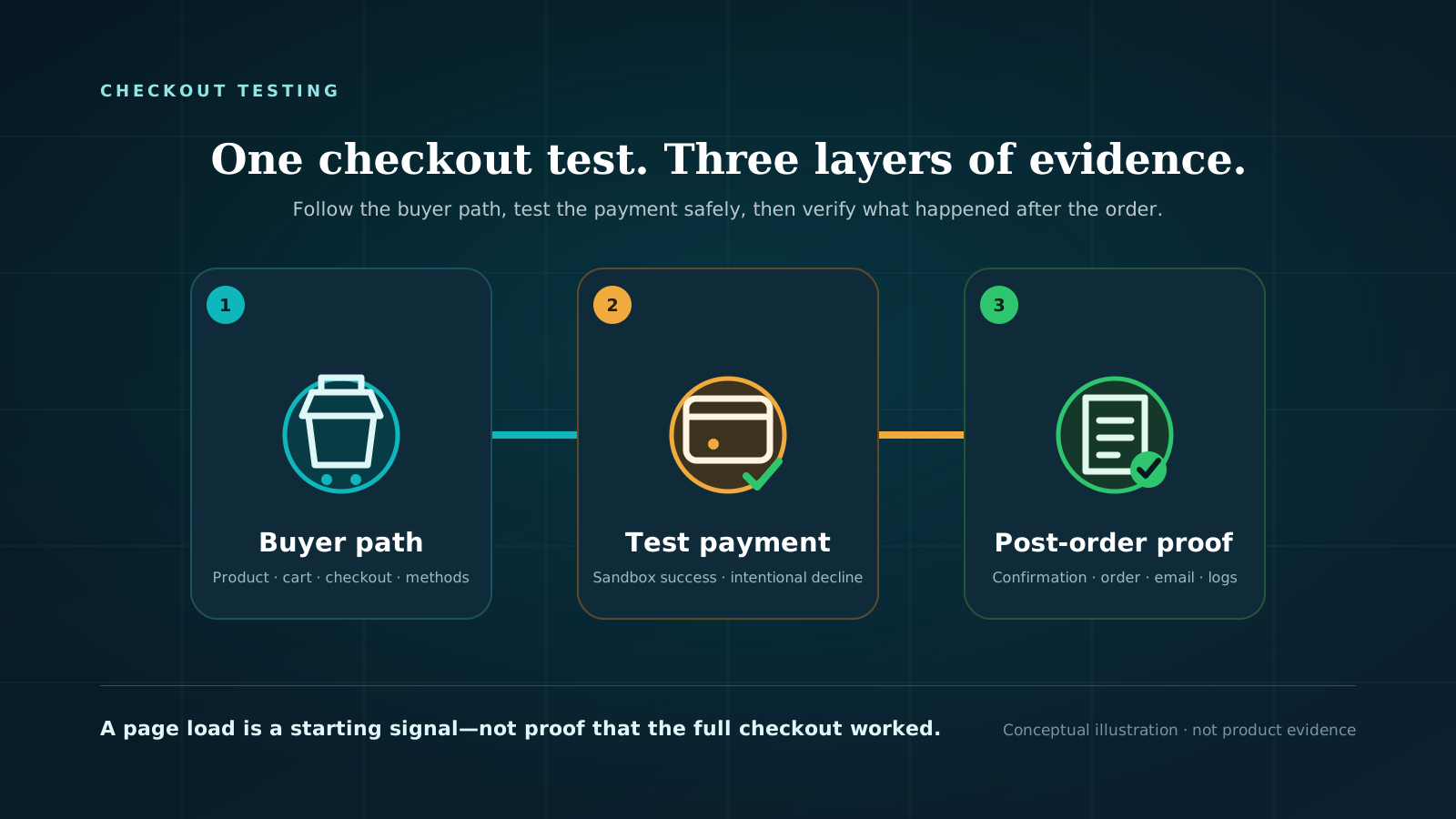
Test one representative buyer scenario from product to checkout. Write down the product, customer type, destination, shipping and payment methods, browser, and device. If the update affected payment or order processing, add an authorized sandbox order on staging.
Record the first step that fails. Seeing a payment method is useful evidence, but it does not prove that payment can be authorized or an order created.
Quick WooCommerce post-update checklist
Use this as the acceptance check after a WooCommerce core, gateway, shipping, tax, theme, Checkout block, or custom-code update.
Change record
- Passing evidence: Component, old/new version, time, operator, and release or changelog link are recorded.
- If it fails: Reconstruct the change before adding another one.
- What a pass does not prove: That the update is compatible with your store.
Update completion
- Passing evidence: No relevant update work is still pending; any required WooCommerce database update has completed.
- If it fails: Capture the notice and progress; do not pile on more changes.
- What a pass does not prove: That the storefront works.
Product
- Passing evidence: The selected product or variation loads, remains purchasable, and shows the expected price.
- If it fails: Record the exact product, variation, browser, and error.
- What a pass does not prove: Other products or customer states.
Cart
- Passing evidence: Add to cart works; item, quantity, currency, discounts, shipping estimate, tax, and totals are expected for the scenario.
- If it fails: Preserve the first mismatch and its timestamp.
- What a pass does not prove: Checkout, payment, or order creation.
Checkout
- Passing evidence: Checkout loads, settles, accepts required details, and preserves the cart.
- If it fails: Capture the first failed field, request, or visible message.
- What a pass does not prove: Payment authorization or an order.
Shipping and payment choices
- Passing evidence: The expected methods appear for the exact cart, address, currency, and customer state.
- If it fails: Recheck scenario eligibility, configuration, compatibility, and logs.
- What a pass does not prove: That the gateway will approve payment.
Staging sandbox order, if required
- Passing evidence: The approved test gateway returns the expected result and WooCommerce creates the expected test order state.
- If it fails: Review order notes and gateway evidence before retrying.
- What a pass does not prove: Live credentials or production-only rules.
Production no-submit check
- Passing evidence: The selected public product-to-checkout path reaches the expected payment choice.
- If it fails: Compare production cache, configuration, credentials, network, and logs with staging.
- What a pass does not prove: Payment, order, email, inventory, webhook, or fulfillment behavior.
A passing check is scenario-specific and point-in-time. It does not certify every product, address, role, browser, gateway, coupon, subscription, or connected system.
1. Record the change and recovery point
Before interpreting a failure, make the update identifiable. Save:
- the component that changed;
- its previous and current versions;
- the update time and time zone;
- who or what applied it;
- the release notes or changelog;
- other changes deployed in the same window; and
- the backup or restore point tied to that version.
WooCommerce’s update guide says a store’s backup needs both the site content files and the database. WordPress documentation makes the same distinction: downloading the WordPress directory does not normally include the separate database.
A backup existing is not the same as a proven restore. Know who can restore it, where the files and database are stored, and what the rollback procedure would replace. Do not improvise a plugin downgrade against an already changed database simply because one check failed.
2. Confirm that the update finished
Open the WordPress admin and look for update, migration, maintenance, or compatibility notices related to the component you changed.
Some WooCommerce releases require a database update. When that notice appears, WooCommerce provides an update action, progress through Scheduled Actions, and a completion notice. Confirm the required work completed before treating a checkout failure as the final state of the new version.
Save a private WooCommerce System Status Report for the test record. It can identify the current WordPress and WooCommerce versions, active plugins, environment details, WooCommerce database version, and table information. Do not paste the report into a public ticket without reviewing it for store and environment details.
This step establishes what is installed. It does not establish that a shopper can buy.
3. Test product, cart, and checkout in order
Use a logged-out private browser window so an administrator session or old cart does not hide the customer path. Choose a product that represents an important checkout scenario; if the update changed variation handling, use a variation.
Product
Confirm that the product page loads, the intended option can be selected, the displayed price is expected, and Add to cart is available. Record the product URL and variation attributes.
Cart
Add the item through the normal buyer interface. Confirm:
- the intended item and variation are in the cart;
- quantity changes behave as expected;
- currency, line price, discounts, shipping estimate, tax, and total match the scenario; and
- continuing to checkout keeps the same cart state.
Do not wave through a wrong total because the checkout page still opens. The first mismatch is usually the most useful boundary for investigation.
Checkout
Let checkout finish recalculating before judging it. Complete the required customer and address fields with safe test details. Then confirm:
- the cart and totals remain expected;
- no required field is unexpectedly missing or impossible to complete;
- the expected shipping method appears for that destination;
- the expected payment method appears for that cart and customer state; and
- the Place order control is available, without clicking it unless this is an authorized transaction test.
Run a free checkout test to check a selected public product, cart, and checkout path through payment-method visibility. The public test does not submit payment, create an order, prove the root cause, or verify post-order systems.
4. Decide whether payment and order proof are required
A no-submit checkout check is appropriate when you need to verify the public path without creating an order. It can show whether the selected scenario reaches shipping and payment choices. It cannot show whether the gateway authorizes payment, WooCommerce creates the right order, or downstream systems react.
If the update affected a gateway, order creation, checkout submission, subscriptions, taxes finalized at order time, or post-order integration, use an authorized sandbox transaction on staging. Follow the current test-mode instructions for the active gateway and define the expected result before submitting:
- expected gateway response;
- expected WooCommerce order status;
- required order note or transaction reference;
- expected email behavior;
- integrations that should be disabled, isolated, or observed; and
- cleanup owner and procedure.
WooCommerce notes that test orders can trigger order emails, appear in analytics, and be treated like normal orders by extensions or connected services. “Test” does not make an order inert. Use staging and contain those effects.
A sandbox pass still does not prove live credentials, production fraud rules, live webhooks, or production network behavior. Do not place and refund improvised live orders after every update. If your organization requires a controlled production transaction, use its existing gateway-approved procedure, test instrument or legitimate payment method, fulfillment controls, accounting treatment, and named owner.
5. Test extra checkout scenarios only when the update could affect them
One scenario is a starting point. Add another only when the update or store design gives you a named risk.
Consider a second check for:
- guest versus logged-in checkout;
- desktop versus mobile viewport;
- primary versus fallback gateway;
- domestic versus another important shipping zone;
- simple product versus variation, subscription, virtual, or downloadable product;
- coupon versus no coupon;
- classic checkout versus Checkout block, if both are deliberately supported; or
- a customer role with different prices or payment eligibility.
Write each scenario down. “Tested checkout” is hard to interpret later; “guest, blue medium variation, US destination, standard shipping, expected card gateway, mobile browser, stopped before Place order” is reproducible.
6. Save the error details before changing anything else
If a check fails, preserve the evidence before clearing it or deactivating components:
- record the exact time and time zone;
- save the URL, product, cart, address, customer state, browser, and device;
- capture the visible message and first failed step;
- note failed browser requests or console error names without exposing credentials or customer data;
- review WooCommerce > Status > Logs around the same timestamp;
- inspect the relevant fatal-error or gateway log when available; and
- if an order exists, preserve its status, notes, total, currency, gateway, and transaction reference.
WooCommerce’s logging documentation identifies WooCommerce > Status > Logs as the first place to review PHP fatal errors. Some gateway logs must be enabled in that extension’s settings. A clean WooCommerce log is not proof that nothing failed: web-server timeouts, CDN behavior, browser errors, and provider-side events can sit elsewhere.
Avoid repeatedly clicking Place order after an uncertain response. First determine whether WooCommerce or the gateway recorded an attempt, so diagnosis does not create duplicate orders or charges.
7. What to do when a post-update check fails
The update or database work is still running
Stop testing and let the authorized update procedure reach a known state. Capture notices and Scheduled Actions progress. Do not start unrelated plugin updates while the store state is ambiguous.
Product or cart fails before checkout
Stay at that boundary. Compare the exact product, variation and cart request on staging. Review the updated component’s release notes and compatibility information. A payment-setting change will not repair a broken add-to-cart action.
Checkout loads but shipping or payment is missing
Preserve the cart, destination, currency and customer state. Check method eligibility and configuration for that exact scenario, then check compatibility between WooCommerce, the checkout implementation, theme, gateway, shipping extension and custom code. Visibility failures occur before authorization, so a gateway decline guide is not yet the right branch.
Place order or a sandbox payment fails
Use the visible error, browser request, WooCommerce order notes and gateway log together. Do not infer a gateway outage from a generic checkout message. Follow the active gateway’s documentation and escalate with timestamps and references.
The same scenario passed before the update and fails after it
Reproduce both states on staging if your restore/deployment process supports that comparison. Change one component at a time. Start from the updated component and its direct compatibility surface rather than bulk-deactivating the live store.
If business impact requires restoration, use the known backup/deployment procedure and an authorized owner. After restoration, rerun the same scenario. A different product or address is not direct recovery evidence.
8. Check your live store after staging passes
Staging is the safer place for update and transaction testing, but a staging pass does not observe every production difference. Production may use different cache/CDN rules, domains, credentials, webhooks, traffic controls, environment variables, or network routes.
After deployment, repeat the no-submit product-to-payment-choice scenario on production. Verify cache exclusions and production configuration through the responsible systems if staging and production disagree. Keep payment submission behind your separately authorized transaction procedure.
Do not change several production layers just to make the monitor green. Confirm whether the failure belongs to the store, the test data, bot protection, DNS/network path, or the testing tool before changing checkout behavior.
Keep a reusable post-update sign-off record
A short record makes the next update easier to compare.
| Field | Record |
|---|---|
| Change | Component, previous/current version, release link |
| Environment | Staging or production, deployment identifier |
| Time | Start, finish, time zone |
| Scenario | Product/variation, customer state, address, shipping, payment, browser/device |
| Expected result | Pass criteria for each tested step |
| Actual result | First failure or completed stopping point |
| Proof boundary | No submit, staging sandbox order, or controlled production transaction |
| Evidence | Screenshot, log, trace, order note or ticket location |
| Untested risks | Named scenarios and systems outside scope |
| Owner | Person responsible for follow-up |
| Decision | Accept, investigate, restore, or escalate |
Do not record secrets, full customer details, payment data, or private store evidence in a public document.
Frequently asked questions
Is loading the shop page enough after a WooCommerce update?
No. It confirms only that the checked page loaded under those conditions. Add a representative product to cart and continue through checkout with a named address, shipping expectation and payment expectation.
Should I place a live order after every update?
Not by default. Use a no-submit production check for the public path and an authorized sandbox order on staging when you need payment and order evidence. Run a controlled live transaction only when your operating procedure requires production-only proof and contains the side effects.
What if staging passes but production fails?
Compare the exact scenario and timestamp, then inspect environment-specific cache/CDN rules, credentials, configuration, DNS/network behavior, bot protection, and logs. Do not assume the code is identical in effect merely because the version numbers match.
Should I roll back immediately when one check fails?
First preserve evidence and confirm the failing boundary. Restore when impact and risk justify it, using a known backup/deployment procedure and an authorized owner. An improvised version downgrade can create a second problem, especially when database work was involved.
Can CheckoutWatch prove that payment works after the update?
The current public test does not submit payment or create an order. It checks a selected public buyer path through payment-method visibility. Use an authorized gateway sandbox order on staging when you need payment authorization and WooCommerce order evidence.
Sign off on the evidence, not the update button
A useful post-update result names the version, environment, buyer scenario, stopping point, expected behavior, actual behavior, and untested boundaries. Start with product, cart, and checkout. Add payment/order proof only when the change requires it and the test environment can contain the effects.
Run a free checkout test to verify a selected public WooCommerce path through payment-method visibility after deployment. It does not submit payment or create an order, so keep sandbox transaction and post-order checks for claims beyond that boundary.