WooCommerce Checkout Blocks not working, can mean many things. A checkout page that’s blank, a payment method that’s missing, a custom field that disappeared, or a Place order button that does nothing. These are all different failures and need different evidence and different tests to diagnose and fix.
Do not begin by replacing the Checkout block or disabling every plugin on the live store. Record the original buyer scenario, find the earliest failed layer, and change one relevant variable at a time.
Before changing anything, capture this evidence
Record enough detail to reproduce the failure without collecting unnecessary private data:
- exact time and time zone;
- checkout URL and whether the page is blank, loading, incomplete, or showing an error;
- product, variation, quantity, coupons, currency, and total;
- billing and shipping country, state or region, and postal code;
- selected shipping method;
- guest or logged-in customer state;
- browser, device, and whether a private window changes the result;
- expected payment method or custom field;
- exact visible error text;
- whether clicking Place order sends a request or creates an order; and
- WooCommerce, theme, payment, checkout-field, and relevant extension versions.
Do not share request bodies, cookies, tokens, card details, customer addresses, or credentials. Redact order screenshots and logs before sending them to support.
Also confirm the scope. Is buyer checkout failing, or is the problem only in the editor, an analytics event, or an email automation? A locked inner block in the editor may be an intentional editing constraint. A missing analytics event can matter, but it is not proof that buyers cannot place orders.
For another view of the buyer path, Checkout Watch can follow the product, cart, and checkout pages to the payment step. It can show where that path stops and provide a report/screenshots after email confirmation.
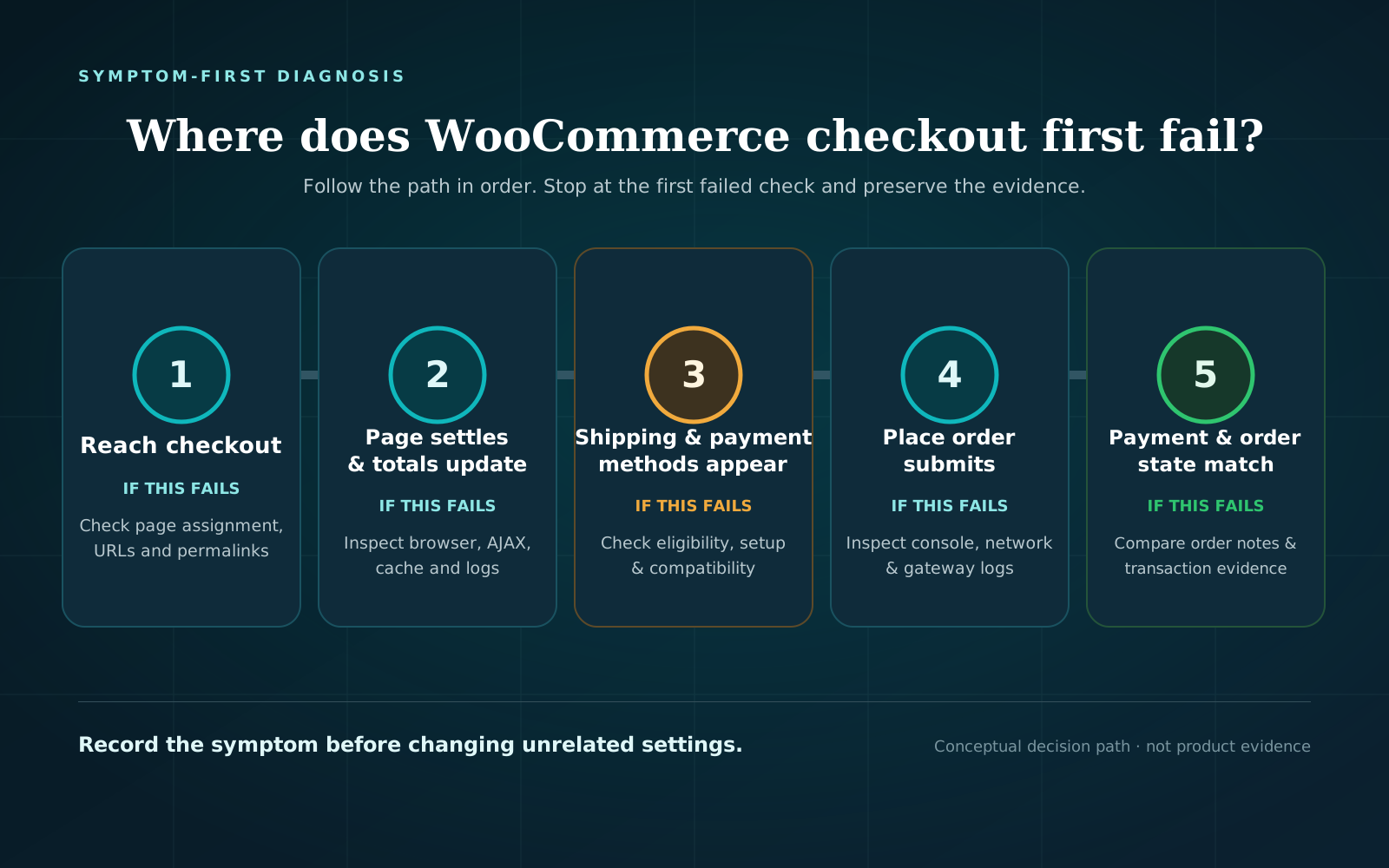
Use this decision path when WooCommerce Checkout Blocks are not working
Start with the first symptom that matches the observed failure.
Checkout is blank, returns 404, or opens the wrong page
- First checks: Assigned checkout page, published state, Checkout block presence, URL, then routing/cache.
- What the result can tell you: Confirms whether WooCommerce is reaching the intended block page; it does not test payment or submission.
Checkout appears but keeps loading or totals do not settle
- First checks: Private-window reproduction, first failed browser request, dynamic page-cache exclusions, timestamped logs.
- What the result can tell you: Separates a stale page or failed front-end request from later gateway processing; a clean PHP log does not clear the browser path.
Payment methods are missing
- First checks: Exact cart/address/shipping/customer state, gateway setup, current Checkout block support, browser error.
- What the result can tell you: Narrows availability versus Blocks integration/rendering; an enabled gateway alone does not prove it should appear for this scenario.
A custom field is missing
- First checks: Field provider, current Blocks support, documented additional-field integration, staging comparison.
- What the result can tell you: Shows whether the field follows a Blocks-compatible extension path; a classic-checkout pass does not identify the exact incompatible code.
Place order does nothing or displays an error
- First checks: Visible validation, network request, first browser error, PHP/gateway log, order creation.
- What the result can tell you: Distinguishes no submission, rejected request, and later payment/order failure.
Blocks fail but classic checkout works on staging
- First checks: Same Cart and Checkout pair, same buyer scenario, extension-by-extension isolation.
- What the result can tell you: Points toward a Blocks-specific integration or customization difference; it does not prove WooCommerce core is defective.
Work down from the earliest failure. If the checkout page is wrong, there is little value in debugging a gateway yet. For broader symptoms, follow the guide to diagnose a WooCommerce checkout that is not working.
Confirm the assigned page and the actual checkout implementation
The checkout page must be assigned under WooCommerce > Settings > Advanced.
Confirm that:
- the assigned Checkout page exists and is published;
- the assigned page contains the Checkout block, not merely a heading or similarly named pattern;
- menus, cart buttons, and custom “Buy now” links reach that assigned page;
- the Cart page points to the intended Checkout page; and
- you know whether the store is actually using the Checkout block or the classic
[woocommerce_checkout]shortcode.
Open the page’s List View in the editor. WooCommerce describes Checkout Fields and Checkout Totals as the two main inner blocks. Many inner parts are dynamic, so an editor preview is not a substitute for testing a real cart in a logged-out browser.
If you see a 404, wrong endpoint, or unexplained redirect, you should try refreshing WordPress routing by opening Settings > Permalinks and saving without changing the structure. Record the original response, perform the refresh once, and retest the same URL. This is a routing check, not a fix for missing custom fields or an unavailable payment method.
Do not keep creating new Checkout pages. A replacement page only becomes the store checkout after it contains the intended implementation and is assigned correctly.
If the Checkout block loads but never settles
A loading skeleton, spinner, or total that never updates means the page rendered at least partially. The next question is whether a browser request, cached response, or server process failed.
Reproduce outside the administrator session
Use a logged-out private window and rebuild the same cart from the storefront. Enter the same address and select the same shipping option. If the report came from a particular device or browser, test that combination before substituting your own.
A private-window pass proves only that scenario worked. It does not rule out an affected browser, customer account, address, cart, or cached edge response.
Inspect the first failed browser request
Open browser developer tools before reproducing. In Console and Network, capture the first error or failed request at the moment checkout stops updating. Record:
- request name and safe URL path;
- HTTP status, if present;
- concise error text;
- timestamp; and
- which action triggered it.
Do not copy request payloads or headers that contain personal data, cookies, nonces, or tokens. The first failed request is usually more useful than a screenshot of the final spinner.
Verify that checkout stays dynamic
WooCommerce’s caching guidance says Cart, My Account, and Checkout need to stay dynamic because their content is specific to the customer and cart. Check every layer that can cache HTML:
- WordPress cache or optimization plugin;
- managed-host page cache;
- CDN or reverse proxy; and
- edge rules added outside WordPress.
Confirm the exclusion rather than repeatedly purging everything. Clear the affected layer once, then rerun the exact scenario. If bypassing one cache layer changes the result, preserve that comparison for the host or cache vendor.
At the same timestamp, inspect WooCommerce > Status > Logs. WooCommerce documents this as an initial source for PHP fatal errors. A matching fatal can explain a failed server request. No matching fatal does not rule out JavaScript, network, security-layer, or third-party API failures.
If payment methods are missing in the Checkout block
For the gateway-availability branch in more detail, see WooCommerce payment methods are not showing.
The Checkout block’s Payment Options section is dynamic. WooCommerce says it displays methods that are both available for the current checkout and compatible with the Checkout block according to gateway configuration.
That creates two separate questions:
- Should this gateway be available for this buyer scenario?
- Can the installed gateway extension render and process through Checkout Blocks?
Preserve the cart, currency, address, shipping method, and customer state. Then check the installed gateway extension’s current settings, version notes, and Checkout Blocks documentation. Do not rely on an old compatibility table or assume that installing/enabling a gateway completes its setup.
For developers, WooCommerce’s payment integration documentation explains the distinction. A Blocks gateway registers its payment method client-side. It can use canMakePayment to evaluate current order information, and it declares supported features that WooCommerce can compare with cart contents. In practical terms, a method may be installed and enabled yet remain unavailable for one cart or fail to render through its Blocks integration.
Use a controlled comparison:
- Does the method appear for a simple product with the same currency?
- Does changing only the shipping address alter availability?
- Does changing only the shipping method alter it?
- Does guest versus logged-in state alter it?
- Does the browser console report an error when Payment Options renders?
Change one variable at a time. Do not enable an unrestricted production payment method or change live/test mode merely to make an option appear. If a gateway records a charge or authorization without a matching WooCommerce order, stop testing and preserve both timelines for escalation.
If custom checkout fields disappeared
A field that appears in classic shortcode checkout but not in the Checkout block is a strong compatibility clue, not a complete diagnosis.
Classic checkout customizations often use a different extension model. Current WooCommerce developer documentation provides a dedicated additional-checkout-field API for Blocks, including registered field types and namespaced field identifiers. That does not mean every missing field needs custom code from you. It means you should verify whether the plugin or customization that owns the field documents current Checkout Blocks support.
Identify the owner of each missing field: tax/VAT extension, delivery scheduler, address validation, checkout-field editor, subscription extension, or custom site code. Then ask four questions on staging:
- Does the field display for the intended cart and address?
- Does required-field validation run?
- Is the value stored with the customer or order where expected?
- Is the value visible to the team or integration that needs it after checkout?
A field merely appearing is not enough if its value is discarded. Conversely, do not add a duplicate field before confirming that the existing extension is supposed to provide it.
Developers should use the current documented Blocks extension points for the installed WooCommerce version. WooCommerce labels some Checkout block Slots as experimental and subject to change or removal. Avoid editing block DOM output or copying a generic snippet that bypasses validation and storage. If custom code is involved, give the developer the exact WooCommerce version, field owner, expected data location, and staging reproduction.
If Place order does nothing or returns an error
If an order exists and the issue is in the payment record, use the separate guide to diagnose a failed WooCommerce payment.
Use one controlled click. Repeated clicks can create duplicate requests and make the timeline harder to interpret.
- Complete every visible required field and terms checkbox.
- Click Place order once.
- Check whether a checkout request appears in the Network panel.
- If no request appears, record the first validation message or console error.
- If a request fails, record its status, safe error text, and timestamp.
- Check WooCommerce and gateway logs at that timestamp.
- Check whether WooCommerce created an order and what its status and Order Notes say.
- Check whether the gateway recorded an attempt, authorization, or error.
These observations separate several cases:
- No request: visible validation or front-end code prevented submission.
- Rejected request: the store, server, or security layer rejected it before successful processing.
- Order exists with a payment error: use the order notes and gateway-specific evidence.
- Gateway event without expected order evidence: stop and escalate with both timelines.
Do not assume “the button is broken” when the browser shows hidden validation or a failed request. Do not run a real charge solely to debug front-end behavior.
Compare Blocks with classic checkout safely on staging
A classic-checkout comparison can isolate the problem, but switching the live store is not a harmless toggle. Checkout fields, payment integrations, layout, validation, and extension behavior may change.
If you want to transform the block Cart or Checkout pages to use the classic shortcode you should revert both together. Here’s the process:
- Create a backup and a staging site that reproduces the original failure.
- Record a Blocks baseline with the exact product, address, shipping method, customer state, browser, and expected payment/fields.
- Transform both Cart and Checkout to their classic versions on staging.
- Repeat the identical scenario.
- If classic passes, record exactly what changed: field display, payment visibility, browser request, validation, or order result.
- Restore the Blocks baseline, then isolate the payment, field, theme, or customization components responsible.
“Classic works” narrows the search toward a Blocks integration difference. It does not tell you which extension is incompatible, whether an update exists, or whether classic checkout is the right long-term production choice.
Isolate theme and plugin conflicts without disrupting orders
On staging:
- reproduce the exact failure before changing components;
- switch to a default WordPress theme or Storefront and retest;
- if it persists, temporarily deactivate unrelated plugins while keeping WooCommerce and the affected WooCommerce extension active;
- if checkout starts working, restore components one at a time;
- repeat the same buyer scenario after each restoration; and
- confirm the smallest conflicting combination before choosing a production fix.
Do not bulk-deactivate payment, security, tax, shipping, subscription, or fulfillment plugins on a live store. If staging cannot reproduce the issue, plan a controlled maintenance window with monitoring and rollback rather than improvising during active ordering.
Verify the fix against the original failure
Use this post-fix checklist. For a full pre-change and post-change procedure, see how to test WooCommerce checkout safely:
- The assigned Checkout page contains the intended Checkout block and is reached from Cart.
- The original product, variation, quantity, coupon, currency, address, shipping method, and customer state are unchanged for the retest.
- Checkout loads in the affected browser/device without an unexplained spinner or failed request.
- Totals, tax, discounts, and shipping settle as expected.
- Every required custom field displays, validates, stores, and appears where the business needs it.
- The expected payment method appears and is selectable for the original scenario.
- Place order sends one request and produces the expected result in an approved test environment.
- When an order test is in scope, WooCommerce records the expected order status, amount, currency, payment method, notes, and custom data.
- No unexplained browser, WooCommerce, or gateway error appears at the retest timestamp.
- One adjacent scenario, such as guest/account or mobile/desktop, is checked.
- Temporary debug logging, cache bypass, test mode, theme, plugin state, and staging-only changes are restored appropriately.
- The cause, change, evidence, retest time, and untested scenarios are documented.
A passing retest supports those scenarios at that time. It does not prove every buyer path will always work.
When to escalate and what to send
Escalate to the gateway or extension vendor, host, or a WooCommerce developer when:
- a gateway event exists without the expected WooCommerce order;
- customer or payment data appears in an error or public response;
- Checkout repeatedly returns server errors or fatal logs;
- a required field cannot be shown, validated, or stored with a documented Blocks integration;
- the issue requires a production interruption to investigate; or
- the smallest reproducible conflict points to code you do not control.
Use this evidence template:
- Expected
- [field, payment method, checkout action, or order result]
- Actual
- [exact symptom and safe error text]
- Started / last seen
- [date, time, time zone]
- Scenario
- [product/cart, currency, address region, shipping, guest/account, browser/device]
- Checkout type
- [Checkout block; include Cart/Checkout page assignment]
- Versions
- [WooCommerce, WordPress, theme, gateway/field/checkout extensions]
- First failed layer
- [page, render, payment, field, submission, order]
- Evidence
- [redacted request/error, log source, order status/notes, screenshot]
- Staging comparisons
- [default theme, minimum plugins, Blocks vs classic]
- Recent relevant changes
- [updates/configuration/deployment]
- Already tested
- [one-variable tests and results]
Frequently asked questions
How do I reset the WooCommerce Checkout block?
First verify the assigned page under WooCommerce > Settings > Advanced and inspect its List View for the Checkout block. For a routing symptom, save Settings > Permalinks once without changing the structure. Recreate the page only if it is missing or damaged, then assign the replacement. Replacing a block does not fix an incompatible payment or field extension.
Why do payment methods show in classic checkout but not Checkout Blocks?
The installed gateway may be eligible in classic checkout but lack a working current Blocks integration, or its Blocks availability check may reject the current cart, address, shipping, customer, or supported features. Check the gateway extension’s current documentation and browser errors, then reproduce on staging. A classic pass is isolation evidence, not the final cause.
Should I switch back to classic checkout?
Use classic checkout on staging as a controlled comparison when needed. WooCommerce says Cart and Checkout should be reverted together. Before making a production decision, verify required fields, gateways, validation, taxes, shipping, order data, and downstream integrations. Do not switch live simply because one staging page rendered.
Why can’t I freely move every Checkout inner block?
WooCommerce locks or dynamically controls parts of the Checkout block. An editor restriction is not automatically a front-end failure. Use the documented block settings and extension points; if required behavior needs custom development, test it against the current WooCommerce APIs on staging.
Can CheckoutWatch diagnose a broken Checkout block?
The public test can follow an external product, cart, and checkout path to the payment step and may help show where that public journey stops. It does not submit payment or create an order, inspect extension code or private settings, confirm custom-field storage, reproduce every buyer scenario, or determine the root cause.
Start with the earliest failed layer
A useful Checkout block diagnosis is not “Blocks versus classic.” It is a controlled answer to: which layer failed first, under which buyer scenario, and what changed when one variable was tested?
Preserve the evidence, isolate broad changes on staging, and retest the original path after the fix. For an external check through the public payment step, without submitting payment or creating an order, use CheckoutWatch as one additional observation. For ongoing verification concepts, read about WooCommerce checkout monitoring.