The safest way to test a WooCommerce checkout is to place a test order on a staging site using your payment gateway’s test or sandbox mode. Complete the journey as a logged-out shopper, then check the order, payment record, confirmation page, emails, and logs.
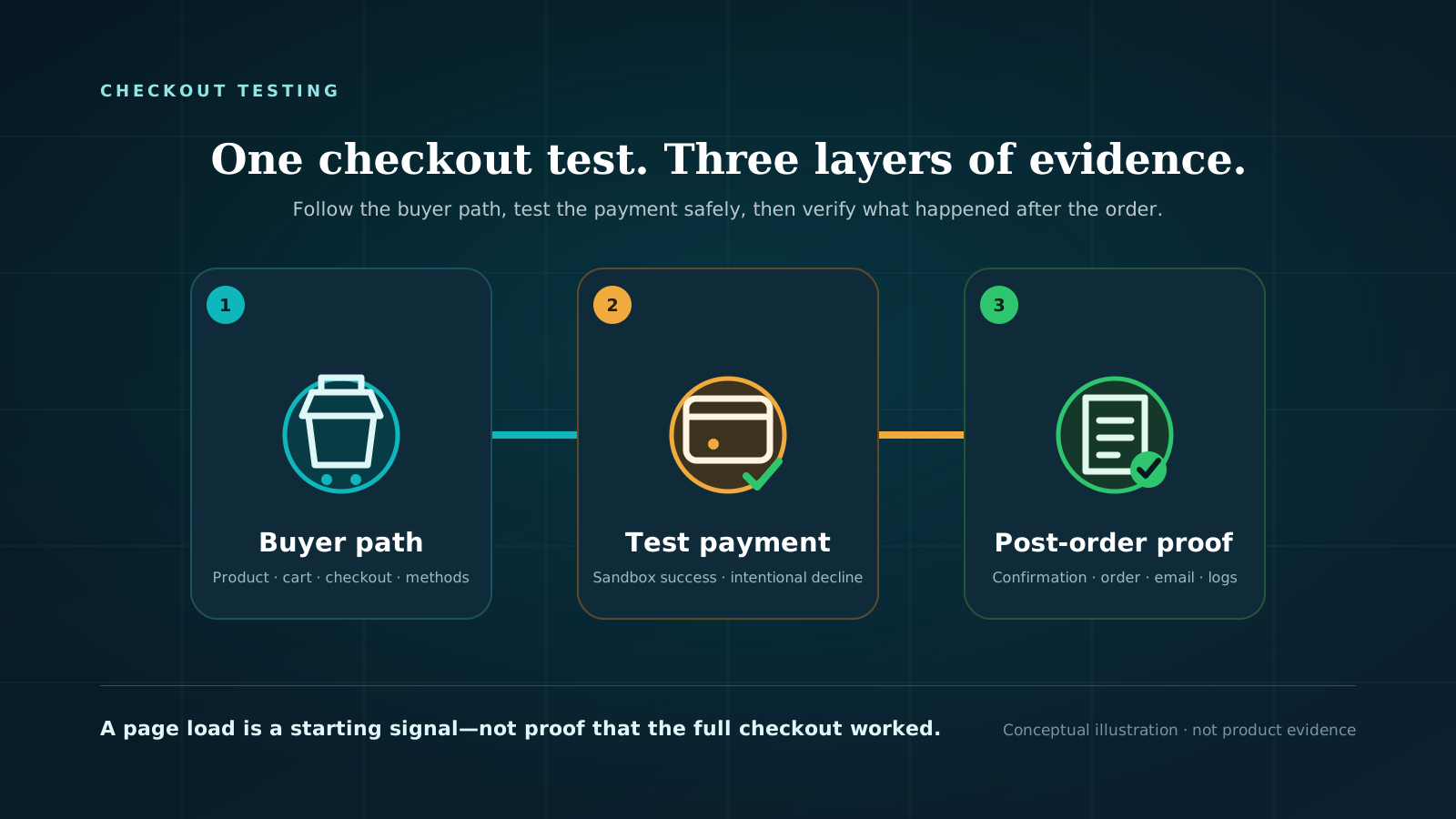
It’s important to not stop at testing whether the checkout page loads. That only proves the page rendered in one session. A useful checkout test answers three separate questions:
- Can a shopper add a product, reach checkout, and see the right totals, shipping options, and payment methods?
- Can the configured test gateway accept or reject a payment as expected?
- Do WooCommerce and the connected systems record the correct result afterward?
WooCommerce recommends performing test payments on a staging site to avoid unintended complications on a live store. That matters because test orders can still trigger emails, appear in analytics, or reach connected services if those systems do not recognise the order as a test.
What a complete WooCommerce checkout test should prove
A checkout test is more than clicking Place order. Each step gives you different evidence.
| Check | What it proves | What it does not prove |
|---|---|---|
| Product can be added to cart | That product and cart path worked in this session | Every product, variation, role, or browser works |
| Cart totals are correct | The tested quantity, discount, shipping, and tax scenario produced the expected total | Every address, coupon, currency, or tax rule works |
| Checkout page loads | The assigned checkout surface rendered for this visitor | Payment or order creation will succeed |
| Expected payment methods appear | Those gateways were eligible and visible for this test scenario | The gateways can complete a payment |
| Sandbox payment succeeds | The tested gateway and scenario reached order creation | Live credentials and every payment method work |
| Test payment is declined correctly | The tested failure produced an error instead of a false success | Every decline, timeout, or authentication edge case is handled |
| Order-received page appears | The buyer reached the confirmation route | Emails, webhooks, or fulfillment worked |
| WooCommerce order is correct | WooCommerce recorded the expected order state and details | The gateway and order status will stay synchronized later |
| Expected emails arrive | Those messages were delivered for this test | Future deliverability is guaranteed |
| Relevant logs are clean | No recorded error was found around this run | No hidden issue exists in another device or scenario |
A passing test is evidence for one product, customer state, address, gateway, device, and moment in time. It is not a guarantee that every buyer can complete checkout indefinitely.
Before you test: protect the store and define the expected result
Start by writing down the scenario you intend to test. Otherwise it is easy to finish an order without noticing that the wrong shipping method, tax, currency, or gateway was used.
Record:
- the product and variation;
- quantity;
- test customer or guest state;
- billing and shipping country or region;
- expected shipping method and cost;
- expected tax;
- coupon or discount, if relevant;
- currency;
- expected payment methods;
- expected final total; and
- the order status you expect after payment.
Use a representative product, but avoid a scenario that could trigger an expensive or irreversible downstream action.
Check what a test order can trigger
Core WooCommerce does not give every test order a universal special status. WooCommerce warns that other extensions and services may be unable to distinguish a test order from a real one.
Before placing the order, identify anything connected to checkout or order creation, such as:
- customer and admin emails;
- inventory management;
- warehouse or fulfillment systems;
- accounting or CRM integrations;
- reward points or memberships;
- subscription workflows;
- analytics and advertising events;
- webhooks; and
- automation triggered by an order status change.
Pause a connected service only if its own documentation says that is the safe way to test. Keep a list of anything you disable so you can restore it afterward.
Use test credentials, not a real card
Use only the test values supplied by the gateway. Stripe states that sandbox transactions do not move funds and that real card details should not be used for testing. WooPayments also warns against placing real orders in live mode and refunding yourself, because transaction fees on those orders are not refunded.
Test data is not interchangeable between gateways. Use the documentation for the gateway and extension installed on the store.
Choose the right WooCommerce test method
WooCommerce does not have one global switch that safely puts every payment method into test mode. Test mode is normally controlled by the payment gateway or its WooCommerce extension.
WooPayments test mode
WooPayments provides a documented test mode for payments, refunds, disputes, and related behavior. Its current instructions place the setting under Payments > Settings in the WordPress dashboard.
When WooPayments test mode is active:
- test payments create WooCommerce orders;
- the order edit screen displays a test-mode notice;
- an order note identifies the test;
- order emails include a
[Test]prefix; and - the Payments area shows test-mode data while test mode is enabled.
Follow the current WooPayments testing documentation for test card values and failure scenarios. After the test, remember that deleting WooPayments test orders does not also delete all transaction data from the Payments area.
Stripe test mode or sandbox
For a Stripe-based WooCommerce gateway, use the test or sandbox environment supported by the exact extension installed on the store. Confirm that the extension is using test credentials before entering any test values.
Stripe provides test values for successful payments, declines, authentication, refunds, and other scenarios. Follow Stripe’s current testing documentation together with the documentation for your WooCommerce Stripe extension. Setting names and locations can vary by extension and version.
A successful Stripe sandbox payment proves the tested sandbox path worked. It does not prove that live API credentials, production fraud rules, or every live payment method are configured correctly.
PayPal sandbox
PayPal’s sandbox is a separate testing environment that uses fictitious accounts. It allows a merchant and a test buyer to complete mock transactions without touching live PayPal accounts.
Create and use sandbox accounts through the PayPal Developer sandbox, then follow the current instructions for the PayPal extension installed on the WooCommerce store. Do not use a live PayPal buyer account for a sandbox test.
As with Stripe, a PayPal sandbox pass is evidence for the sandbox scenario you ran. It does not guarantee that the live account, live credentials, or every checkout variation will work.
Offline payment as a limited checkout test
An offline method such as check payments can be useful when you need to confirm that WooCommerce creates an order without sending a digital payment to a gateway.
This is a limited test. It can show that the cart, form submission, order creation, and confirmation route work for the offline method. It does not test Stripe, PayPal, WooPayments, card authentication, or a gateway’s communication with WooCommerce.
Run the buyer journey in a clean session
Once the environment and gateway are ready, test the path a buyer actually takes.
1. Start logged out
Open a private or incognito browser window so your WordPress administrator session does not affect the result. If the store offers guest checkout, test as a guest first.
WooCommerce lets stores enable or disable guest checkout. Some products and extensions can require an account; subscriptions are one example. Test the customer state the store actually expects buyers to use.
2. Add a representative product to cart
Choose a product that exercises the rules you care about. If variations, shipping classes, coupons, or tax rules matter, include them deliberately rather than at random.
At the cart, compare the displayed values with your expected result:
- product and variation;
- quantity;
- subtotal;
- discount;
- shipping;
- tax;
- currency; and
- final total.
Save a screenshot or note the values. “The cart opened” is not enough if the amount or currency is wrong.
3. Check the checkout page and payment visibility
On checkout, confirm that:
- the expected checkout fields appear;
- the address changes shipping and tax as expected;
- the expected shipping method is available;
- the displayed total still matches the cart;
- every expected payment method is visible; and
- there is no unexplained spinner, disabled button, or visible error.
If checkout is missing or points to the wrong page, check the page assignment under WooCommerce’s advanced settings. WooCommerce documents that Cart, Checkout, and My Account need separate assigned pages; incorrect page setup can cause redirects or payment-gateway problems.
4. Complete one successful test payment
Use the gateway’s documented test data and place the order. Record:
- gateway and test scenario;
- date and time;
- browser and device;
- final total and currency;
- confirmation URL;
- order number; and
- any message shown to the buyer.
A pass should end on the expected order-received page and create a corresponding WooCommerce order.
5. Run one intentional failure when supported
If the gateway provides a documented decline or failure test, run one. Check that the shopper sees a useful error and that the store does not show a false confirmation.
Do not invent failure values or repeatedly hammer the gateway. Use only documented test cases and stop once you have the evidence you need.
6. Repeat the core path on a real mobile device
A desktop pass adds no evidence about a mobile browser. Repeat at least the cart, checkout, payment visibility, and submission path on one real phone or tablet relevant to your customers.
This still does not cover every browser or device. It adds one more useful test segment. That distinction matters because store owners have reported checkout failures that affected older Safari or iPhone users while the owner could not reproduce the problem in their usual browser.
Verify what happened after checkout
The buyer-facing confirmation is only one side of the test. Now check the systems behind it.
Check the WooCommerce order
Open the test order and compare it with your expected result:
- product, variation, and quantity;
- subtotal, discount, shipping, tax, and total;
- currency;
- customer and address;
- payment method;
- order status;
- transaction reference, when provided; and
- order notes.
Do not assume every gateway labels test orders the same way. WooPayments adds test-specific notices and notes, but core WooCommerce has no universal test-order status.
Pay particular attention to Pending payment. WooCommerce explains that this status can appear when a shopper does not complete an external payment page or when a card is declined. If the gateway shows a successful payment but WooCommerce remains at Pending payment, the problem may be communication between the gateway and the store rather than an email problem.
Check emails without confusing “sent” with “received”
Confirm whether the expected customer and store-owner emails arrived. Then check whether WooCommerce attempted to send them.
WooCommerce records transactional email attempts under WooCommerce > Status > Logs in the transactional-emails source. Those logs can show whether WooCommerce handed a message to the mail system, encountered an error, or did not attempt the message.
A “Sent” log entry means WooCommerce handed the email to the mail system. It does not prove the message reached the inbox. Check the receiving mailbox, spam folder, and mail provider if delivery is missing.
Review WooCommerce and gateway logs
Under WooCommerce > Status > Logs, inspect entries around the test time. Start with:
- fatal errors;
- the installed gateway’s log, if logging was enabled;
- transactional email logs; and
- any integration that should have reacted to the order.
A clean log is supporting evidence, not a guarantee that nothing went wrong. Record the timestamp and the log sources you reviewed so another person can repeat the check.
Verify integrations separately
If the test is supposed to exercise a webhook, subscription, fulfillment tool, CRM, or accounting system, verify that system using its own authoritative documentation. Do not infer that an integration worked merely because the WooCommerce order exists.
Clean up the WooCommerce test order
Finish the test by returning the environment to a known state.
- Delete or clearly handle the test order so it is not accidentally fulfilled or counted as a real order.
- Confirm whether gateway-side test transaction data remains after deleting the WooCommerce order.
- Restore live mode and live credentials where applicable.
- Confirm that the expected live payment methods are visible again.
- Re-enable any integration you intentionally paused.
- Check stock, analytics, email, and connected tools for test artifacts.
- Save the test date, scenario, gateway, device, result, and evidence.
Do not rely on memory for the final live-mode check. Make it a named line in the checklist.
WooCommerce checkout test checklist
Use this pass/fail list for launches, updates, and material checkout changes.
- Test is running on staging where possible.
- Gateway test or sandbox mode is enabled with test credentials.
- Connected services that could act on a test order have been reviewed.
- Expected product, address, shipping, tax, discount, currency, gateway, and total are written down.
- Test starts in a logged-out/private session.
- Representative product and variation can be added to cart.
- Cart quantity and totals update correctly.
- Checkout page loads with the expected fields.
- Guest or account checkout behaves according to store policy.
- Expected shipping and payment methods are visible.
- One documented successful test payment completes.
- One documented decline or failure behaves correctly, when supported.
- Buyer reaches the correct order-received page.
- WooCommerce creates the expected order.
- Amount, currency, payment method, status, transaction details, and order notes are correct.
- Expected customer and admin emails are generated and received.
- Transactional email, gateway, and fatal-error logs have been reviewed.
- Required webhooks or integrations are verified separately.
- Core path has been repeated on at least one real mobile device.
- Test order and other test artifacts have been handled.
- Live mode, live credentials, payment visibility, and paused integrations have been restored.
- Test date, scope, device, gateway, result, and evidence have been recorded.
When one manual checkout test is not enough
Run this checklist before launch and after changes that can affect the buying path, including updates to WooCommerce, payment gateways, themes, checkout extensions, caching or CDN rules, shipping, tax, and fraud settings.
A manual test gives you detailed evidence, but only for the path you selected. It can miss an intermittent failure or a problem limited to a different device, customer state, address, product, or payment method.
For a second view from outside your normal browser session, you can run a free checkout test. CheckoutWatch checks the public path from storefront to the payment step and provides screenshot evidence after email confirmation. It does not submit a payment or create an order, so use it alongside—not instead of—the sandbox payment, order, email, and integration checks above.
Frequently asked questions
Can I test WooCommerce checkout without a real payment?
Yes. Use the test or sandbox mode provided by the installed payment gateway and its documented test values. An offline method such as check payments can test order creation without a digital transaction, but it does not prove that the real online gateway works.
Does WooCommerce have one global test-mode switch?
No. Test mode is normally controlled by the gateway or payment extension. Follow the documentation for the exact WooPayments, Stripe, PayPal, or other extension installed on the store.
Can I use a real card and refund the payment?
Use the gateway’s test mode instead. Real live-mode payments can incur fees, create real financial records, and trigger production systems. WooPayments specifically warns that transaction fees are not refunded when you place a real order and refund yourself.
Why did the test order pass but the email not arrive?
Order creation and email delivery are separate checks. Review the WooCommerce order status and the transactional-emails log under WooCommerce > Status > Logs. If WooCommerce handed the email to the mail system, investigate deliverability with the receiving mailbox, spam filtering, host, or mail provider.
Should I test on staging or the live store?
WooCommerce recommends staging for test payments. Staging reduces the risk of confusing live customers or triggering production systems, although it may not perfectly reproduce every live-only configuration. If a live check is necessary, define a narrow scope, use permission and safe controls, and do not enter real payment details as test data.
How often should I test WooCommerce checkout?
There is no single interval that fits every store. At minimum, repeat the checklist before launch and after a material change to WooCommerce, the gateway, checkout, theme, cache/CDN, shipping, tax, or fraud configuration. A single pass is a point-in-time result, not permanent proof.
Final check: prove each layer, then record the result
A safe WooCommerce checkout test has three layers: buyer path, payment behavior, and post-order evidence. Test them separately. Record what passed, what you did not test, and what must be restored afterward.
If you also want an external check of the public cart and checkout path, use CheckoutWatch as a complementary test. It reaches the payment step without placing an order, while your gateway sandbox test remains the way to verify payment and order creation.