Sometimes a customer reaches the checkout and shows “no payment methods available.” Sometimes every option is gone. Sometimes an expected gateway is missing, or the message appears for one address, product, shipping choice, browser, or customer.
It’s important that you do not start by changing everything.
First, record the checkout scenario in which the method disappeared:
- the exact message, page URL, time, and time zone;
- cart items, quantities, total, and store currency;
- billing and shipping country, state, and postal code;
- selected shipping method;
- guest or logged-in customer state;
- browser and device;
- whether the page uses the Checkout block or classic shortcode; and
- which payment methods you expected to see.
Then ask one basic question: are all methods missing, or only one? That distinction keeps a gateway-specific restriction from turning into a site-wide plugin hunt.
If you want a second view of the public buyer path, Run a free checkout test. The public test follows a product, cart, and checkout path to the payment step and can provide a report and screenshots after email confirmation. It does not submit payment, create an order, reproduce every buyer/address scenario, or diagnose the root cause.
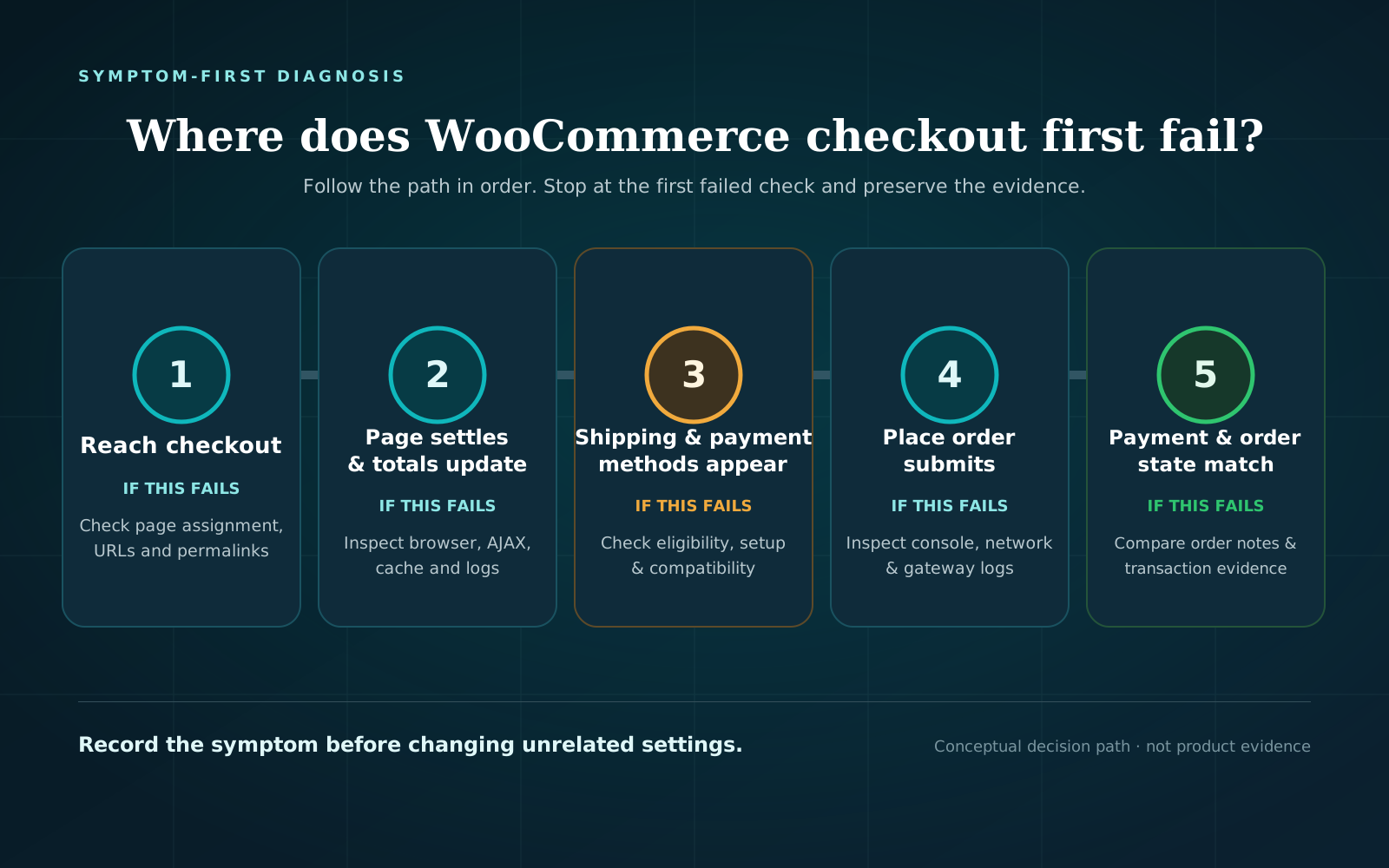
Use this decision path when WooCommerce payment methods are not showing
Work from the first row that matches your symptom. Change one variable at a time and retest the same checkout.
| What you observe | Check next | What the result suggests | What it does not prove |
|---|---|---|---|
| No methods appear in every controlled test | Gateway enabled/setup status, current mode, connection status, then browser and WooCommerce logs | The problem may be before scenario-specific eligibility or may affect rendering generally | That WooCommerce core is the cause |
| One expected method is missing, but another appears | That extension’s current requirements and restrictions | The missing method may be disabled, incomplete, unsupported for the scenario, or failing to render | That the visible method can complete an order |
| Changing the billing or shipping address changes the options | Region/address eligibility in that gateway’s documentation | Availability is scenario-specific | That every gateway uses the same country or state rules |
| Changing the shipping method changes the options | Gateway shipping restrictions | The chosen shipping rate may control availability | That the shipping zone itself is misconfigured |
| Changing the cart changes the options | Product/cart support, virtual/physical status, subscriptions, totals, and extension rules | A cart requirement may be excluding the method | Which rule is responsible until you verify it |
| The method appears with classic checkout but not the Checkout block | The payment extension’s current Blocks integration and version | A block integration or client-side path needs investigation | That Checkout Blocks are universally broken |
| The method disappears only for guests, accounts, or one browser | Compare customer rules, browser requests, and the exact session without changing other variables | The failure is limited to that tested segment | That cache is the cause without evidence |
This sequence separates four states that are easy to conflate: enabled, configured, eligible, and rendered.
1. Confirm that the gateway is enabled and fully configured
Go to WooCommerce > Settings > Payments. This is where installed gateways are enabled and where their setup or management screens open.
For the payment method you expect, verify:
- the gateway extension is installed and active;
- the payment method is enabled in WooCommerce;
- required setup is complete;
- the provider account or connection has the expected status;
- credentials belong to the intended test or live environment; and
- changes were saved.
An enabled toggle is necessary, but it is not the same as a configured and available method. Use the documentation for the exact extension and version installed on your store. Menu labels and requirements differ between providers.
For example, the “Enable Stripe” setting controls whether Stripe methods appear at checkout. It also documents separate live and test connection status, payment-method requirements, and connection details. That is evidence for the official Stripe extension only—not a universal path for every plugin with “Stripe” in its name.
Do not switch a production gateway between live and test modes casually. Record the existing state first. If you need a transaction test, follow that gateway’s sandbox/test-mode instructions and your store’s fulfillment safeguards rather than entering a live card simply to make the methods list refresh.
2. Check whether the method is eligible for this checkout
A configured gateway can still be unavailable for a particular order. Test the original scenario, then alter only one of these inputs at a time:
- billing country, state, or postal code;
- shipping country, state, postal code, or selected rate;
- cart product and quantity;
- physical versus virtual cart;
- order total;
- currency;
- guest versus logged-in customer; or
- subscription or other special product type, if an extension adds one.
Do not assume every gateway checks every item in that list. Look for requirements or restrictions in the installed extension’s current documentation.
WooCommerce’s core Cash on Delivery settings show why this distinction matters. It allows the method to be limited to selected shipping methods and separately controls whether it is accepted for virtual orders. COD can therefore be enabled yet correctly absent from a checkout that does not meet those settings.
Provider-specific methods can have other limits. WooPayments documents that some of its methods are available only in certain countries or regions, while some express options depend on the device. Again, this supports checking the exact provider’s eligibility rules; it does not mean every missing gateway is a country or device problem.
A controlled eligibility test
Use a staging site or a gateway-supported test environment when an order might be created.
- Reproduce the failure with the original cart and address.
- Save a screenshot and note which methods appear.
- Change one input—for example, only the shipping method.
- Wait for checkout totals and methods to finish updating.
- Record whether the expected method appears.
- Restore the original input and confirm that the symptom returns.
A repeatable A/B result narrows the condition. It still does not tell you whether the condition comes from core settings, gateway settings, custom code, or another extension. That is the next branch.
3. Identify Checkout block versus classic shortcode behaviour
Edit the assigned Checkout page or template and identify its implementation. Current WooCommerce documentation distinguishes the Checkout block from the classic checkout shortcode.
That difference can matter because a payment extension needs a client-side integration for Checkout Blocks.
Do not replace a production Checkout block with a shortcode as your first fix. If a controlled staging comparison requires switching, the Cart and Checkout should be reverted together when moving back to classic. Record the baseline, test the pair on staging, and treat the result as compatibility evidence—not as permission to make an unreviewed production change.
4. Inspect browser failures and timestamped logs
When settings and eligibility look correct, reload the exact checkout in a private window and capture the failure time. In browser developer tools, look for failed requests or console errors that occur when:
- the page first loads;
- an address changes;
- a shipping method changes; or
- the payment section updates.
Record the request URL or error name, HTTP status, and timestamp. Do not copy card details, authorization headers, cookies, tokens, customer addresses, email addresses, or full request bodies into a ticket or document.
Next, check WooCommerce > Status > Logs near that timestamp. The log system records PHP fatal errors and is an initial troubleshooting resource. Also consult the installed gateway’s documentation for its own logging controls and log names.
A relevant fatal error or gateway message is useful evidence. A clean WooCommerce log is not a clean bill of health: a request can fail in the browser, at a proxy or security layer, or inside a provider response without producing the PHP fatal you expected.
5. Isolate plugin, theme, and custom-code conflicts safely
Do this on staging whenever possible. Bulk-deactivating a payment, security, tax, shipping, membership, or fulfillment extension on a live store can change what buyers can order and how orders are processed.
Use the default theme, temporarily deactivate plugins except WooCommerce and the extension involved, and reproduce the identical steps, and then restore components one at a time.
Use a payment-method-specific version of that process:
- Back up the site and create a staging clone that does not send real fulfillment or customer messages.
- Reproduce the missing method before changing anything.
- Keep WooCommerce and the affected payment extension active.
- Switch to a default theme.
- Temporarily remove other extensions and custom snippets from the test path.
- Retest the exact cart, address, shipping method, currency, customer state, and checkout type.
- Restore one component at a time and repeat the same test.
If the method returns after one component is removed and disappears when that component returns, you have a reproducible conflict to take to the relevant developers. You have not necessarily identified which component contains the defect; the interaction may require both.
What not to do when no payment methods are available
- Do not toggle settings repeatedly without a baseline. You will lose the sequence that made the issue reproducible.
- Do not disable every plugin on production. Use staging and retain the minimum extensions required for the payment scenario.
- Do not clear logs and screenshots before saving the incident timestamp. Preserve evidence first.
- Do not assume “for your state” means the shipping zone is wrong. Verify the gateway’s address and shipping requirements before changing zones.
- Do not blame Checkout Blocks solely because classic checkout behaves differently. That comparison points to an integration path; extension versions, custom code, and browser errors still need checking.
- Do not run an uncontrolled live charge just to test visibility. Visibility can be diagnosed before payment submission; transaction testing belongs in a documented sandbox or carefully controlled test process.
- Do not stop after one method appears. Visibility is one checkpoint, not proof that submission, payment, order status, email, or fulfillment works.
Post-fix verification checklist
Mark each item pass, fail, or not tested. Keep the evidence with the change record.
- The original product, quantity, address, shipping method, currency, customer state, browser/device, and checkout type have been retested.
- The expected payment method is visible and selectable in that original scenario.
- Changing address or shipping inputs updates totals and methods without a visible error.
- A relevant adjacent scenario—such as guest versus account or mobile versus desktop—has been checked.
- If a transaction test is authorized, it uses the provider’s documented test mode or sandbox and does not trigger real fulfillment.
- The resulting test order, status, notes, and provider result match the test plan.
- Temporary logging, test mode, theme, plugin, and staging-email changes have been restored to their intended state.
- The fix and tested scope are documented; untested regions, currencies, customer types, or payment methods are named.
A pass for one scenario establishes only that scenario at that time. It is still much stronger evidence than “the gateway is enabled.”
When to escalate and what to send
Escalate to the payment-extension developer, WooCommerce specialist, host, or security/CDN provider when the original scenario remains reproducible after the safe checks, or when investigation would require risky production changes.
Send a redacted evidence pack:
- WooCommerce, WordPress, theme, and payment-extension versions;
- Checkout block or classic shortcode;
- expected method and exact visible message;
- cart type, total range, currency, country/state, shipping method, and guest/account state without personal data;
- steps to reproduce and time with time zone;
- browser/device and failed request or console error names;
- relevant WooCommerce/gateway log lines with secrets removed;
- changes already tested and their result; and
- whether the issue reproduces on staging with a default theme and minimum extensions.
Escalate immediately if checkout exposes private data, payment may have been captured without a matching order, or testing could create duplicate charges. Preserve transaction references and timestamps, but do not place credentials or full payment/customer details in shared tickets.
FAQ
Why is a WooCommerce payment method enabled but unavailable?
“Enabled” is only the first check. A method may still need account setup or a correct live/test connection, may not be eligible for the current cart or buyer inputs, or may fail to render in the current checkout implementation. Verify those layers in that order using the installed extension’s documentation.
Why does WooCommerce say there are no available payment methods for one state or address?
The result suggests an address-dependent condition, but it does not identify which one. Keep the cart, currency, customer state, and checkout type fixed; change only the address; then inspect the gateway’s country/region rules and any shipping-method restrictions. Do not rewrite shipping zones until the controlled comparison supports that branch.
Are Checkout Blocks causing the missing gateway?
Not automatically. A method that appears in classic checkout but not in the Checkout block gives you a useful compatibility clue. Check the extension’s current Blocks support, versions, browser errors, and a staging reproduction. Do not generalize one extension’s result to every gateway.
Should I disable all plugins to make payment methods return?
Not on the live store. Back up the site and use staging. Keep WooCommerce and the affected gateway active, establish a baseline, then follow a controlled conflict test and restore one component at a time.
Can CheckoutWatch tell me why the payment method is missing?
The free public test can provide an independent view of whether its public path reaches a visible payment step, with report and screenshot access after email confirmation. It does not submit payment or create an order, and it does not diagnose the root cause or reproduce every address, customer, currency, or gateway condition.
Restore the method, then prove the same scenario
The useful question is not just “Is the gateway on?” It is: Is it enabled, configured, eligible for this checkout, and rendered for this buyer scenario? Preserve the original inputs, work through those layers, isolate risky changes on staging, and retest the exact failure after the fix.
For an external check of the public path, Run a free checkout test. It can check through the visible payment step and provide report/screenshots after email confirmation; it will not submit payment, create an order, diagnose the cause, or validate post-purchase systems.