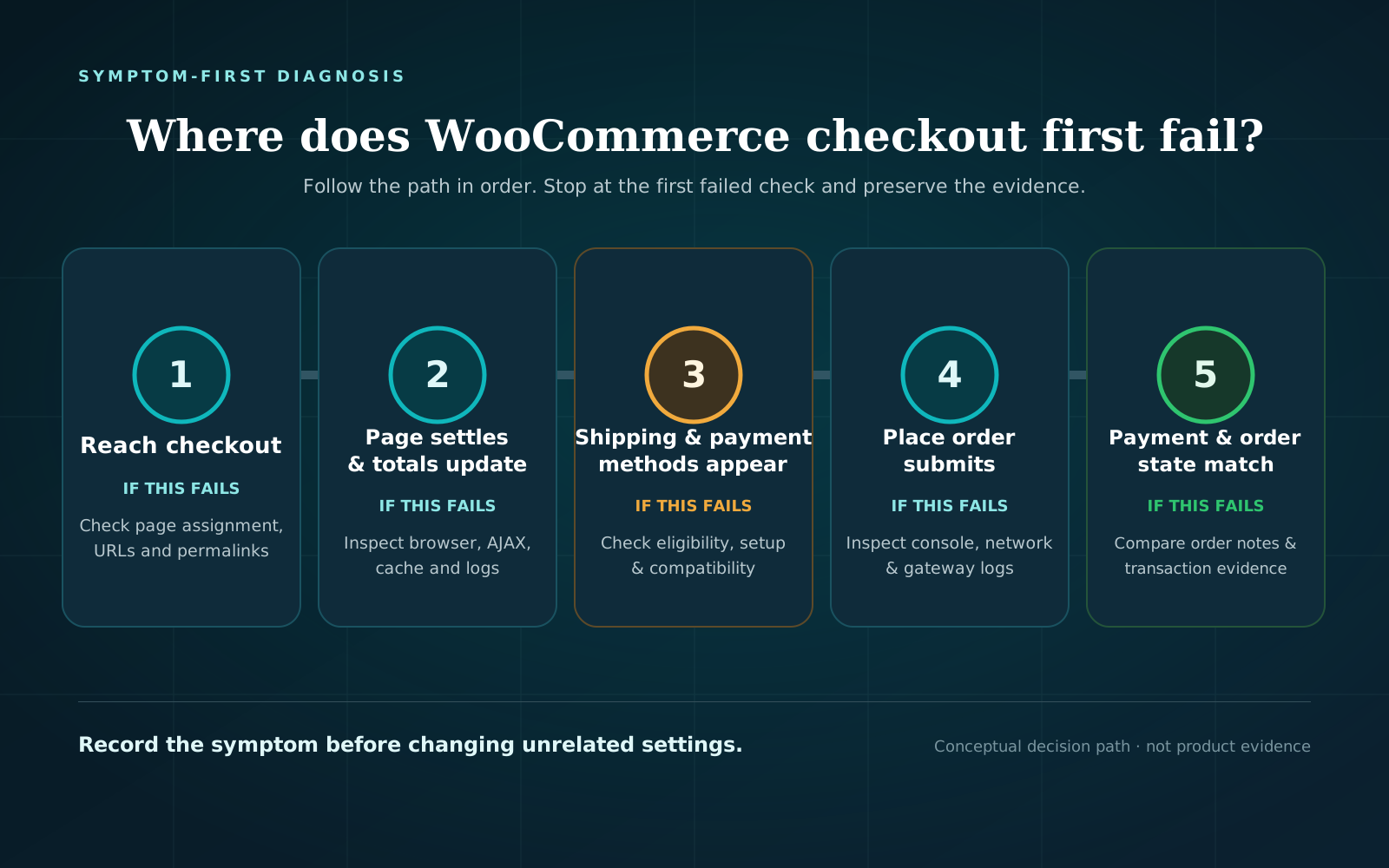
When WooCommerce checkout isn’t working, start with taking a look at the first step that fails. Do not start with disabling a long list of plugins. What this means is you have to identify and record the exact symptom, reproduce the same buyer scenario, and inspect the evidence before changing the store.
A blank checkout page needs a different check from a missing payment method. A button that does nothing is different to a payment that succeeds while the order remains pending. Separating those failure points keeps the investigation focused and reduces the chance of creating a second problem.
Before changing anything, do these four things
- Record the failing scenario. Note the time and time zone, page URL, product and variation, cart total, billing and shipping location, guest or logged-in state, browser, and device.
- Capture the symptom. Save the exact error text, screenshot, order number and status, and any visible failed request or browser-console error. Do not include customer, card, credential, or other sensitive data when sharing evidence.
- Find the scope. Does checkout fail for everyone, or only one browser, device, address, customer role, product, currency, shipping method, or payment method?
- Avoid broad live changes. Do not bulk-disable gateways, security tools, fulfillment connections, or plugins on a production store. Preserve failed orders and logs until you have recorded what happened.
If you need another view of the public buyer path, Checkout Watch can follow public product, cart, and checkout pages to the payment step. It may help show where that path stops, but it does not submit payment, create an order, or identify every possible root cause.
WooCommerce checkout diagnostic path
Start at the first row that matches the failure.
| First failed step | What to check next | Evidence to keep |
|---|---|---|
| Buyer cannot reach checkout; page is blank, 404, or redirects | Checkout page assignment, page content, permalinks, then cache | URL, response/error, assigned page, screenshot |
| Checkout opens but keeps loading or totals never settle | Clean browser session, failed browser requests, page-cache exclusions, WooCommerce fatal logs | Timestamp, console/network error, cache headers or settings, log entry |
| Shipping options are missing | Address, cart contents, shipping requirements, and the exact shipping configuration | Address region, package/cart, expected method and reason it should qualify |
| Payment methods are missing | Gateway enabled/configured state, scenario eligibility, Checkout block/classic compatibility, browser errors | Currency, address, cart, customer state, expected gateway, console error |
| Place order does nothing | Required fields, visible validation, browser/network failure, fatal and gateway logs | Exact click result, failed request, console error, timestamp |
| Checkout returns a payment error or failed order | Order Notes, gateway error code, gateway logs and status | Order number/status, note/error code, transaction reference if one exists |
| Gateway shows a result but WooCommerce order is pending, wrong, or missing | Preserve both gateway and WooCommerce evidence; investigate communication and order creation | Amount, currency, gateway result, order notes/status, timestamps |
It’s important that you don’t jump to the last branch because it sounds more serious. Work from the earliest failed step you can reproduce.
If the checkout page is blank, missing, 404, or redirecting
First confirm that WordPress is sending buyers to the page WooCommerce expects.
WooCommerce’s current page documentation places assignment under WooCommerce > Settings > Advanced > Page setup. Confirm that:
- one published page is assigned as Checkout;
- the page contains the WooCommerce Checkout block or, on a legacy setup, the
[woocommerce_checkout]shortcode inside an appropriate block; - Cart and Checkout are not assigned to the same page; and
- menus and custom buttons point to the assigned checkout URL.
A page existing in WordPress does not prove WooCommerce is using it. Conversely, creating another “Checkout” page does nothing until the correct page is assigned.
For a 404, blank endpoint, or incorrect redirect, WooCommerce documents a safe permalink refresh: open Settings > Permalinks and click Save Changes without changing the structure. Retest the same URL afterward. This rebuilds WordPress routing rules; it is not a fix for missing payment fields or a gateway decline.
If the assigned page and route are correct, clear the relevant page cache and retest in a logged-out private window. Record the original behavior first so you can tell whether the cache change actually affected the result.
If checkout keeps loading or totals never update
An endless spinner shows that the page appeared but did not finish the expected checkout update. Treat that as a front-end or request-level symptom until the evidence identifies a specific cause.
Reproduce in a clean session
Open a private window, start from the storefront, add the same product, and use the same address and customer state. This removes your administrator session from the test, but it does not rule out a browser-specific problem.
Then compare:
- the affected browser and device, if known;
- one second browser;
- desktop and a real mobile device when the report is device-specific; and
- guest versus account checkout if both are offered.
WooCommerce itself recommends testing failed-order scenarios across devices and browsers. A pass in your usual browser only proves that one scenario worked.
Check the dynamic page cache boundary
Cart, My Account, and Checkout need to stay dynamic because they contain customer- and cart-specific information. Verify exclusions in every layer that can cache HTML:
- the WordPress caching plugin;
- managed-host page cache;
- CDN or reverse proxy; and
- any optimisation service that rewrites or delays checkout scripts.
Do not purge everything repeatedly and call that a diagnosis. Confirm the exclusion, clear the affected layer once, and rerun the same scenario. If bypassing one layer changes the result, you have useful isolation evidence.
Inspect browser and WooCommerce errors at the same time
Open the browser developer tools before reproducing the issue. In the Console and Network panels, look for the first error or failed request at the moment totals stop updating. Record the request name, status, and error—not request bodies, cookies, tokens, or card data.
Then open WooCommerce > Status > Logs and inspect entries at the same timestamp. WooCommerce documents this log area as an initial source for PHP fatal errors. A fatal error can explain a failed checkout request, but a clean PHP log does not rule out a blocked network call, JavaScript error, gateway outage, or browser-specific failure.
If shipping methods are missing
Treat shipping as its own eligibility step. Payment methods can depend on the shipping result, so changing the gateway first may hide the actual cause.
Write down:
- the full shipping country, state or region, and postal code;
- physical versus virtual products;
- product quantities and shipping classes;
- the package value and weight if relevant;
- the expected method; and
- why that method should be available for this scenario.
Compare the failing address and cart with one known-working scenario. If only one destination or product set fails, review the exact shipping method’s requirements and current configuration. Do not temporarily offer an unrestricted production shipping method merely to make the error disappear; test configuration changes on staging or in a controlled method documented by the extension.
If payment methods are missing
“No payment methods available” does not by itself prove that the gateway is down. It means no usable method rendered for that checkout state.
Preserve the state before changing it:
- cart items and total;
- currency;
- billing and shipping location;
- selected shipping method;
- guest or logged-in state;
- any subscription or saved-payment requirement;
- the expected gateway; and
- whether checkout uses the Checkout block or classic shortcode.
Then check the exact gateway extension’s current documentation and settings. Confirm that the method is enabled, configured for the correct mode, and intended to support the current currency, location, product, customer state, and checkout implementation.
The implementation matters. WooCommerce documents separate customization paths for the Checkout block and classic shortcode checkout, and some classic checkout-field code does not apply to the block. Identify which one the store uses before testing compatibility. Do not switch a production checkout between block and classic as a quick fix; that can change fields, extensions, and behavior. Use a staging site to compare implementations.
If all settings look eligible, return to the browser Console and Network panels. An enabled method can still fail to render when its script or request fails. Record that error and compare it with the gateway extension’s own logs and support documentation.
If the Place order button does nothing
A button that appears clickable but produces no confirmation can fail before the gateway sees a payment attempt. Avoid clicking repeatedly; duplicate submissions make the timeline harder to read and can have financial consequences on a live gateway.
Run one controlled reproduction and check:
- Are all visible required fields, terms, and validation messages complete?
- Does clicking the button create a network request?
- If no request is sent, what is the first browser-console error?
- If a request fails, what status and safe response message appear?
- Is there a PHP fatal entry at the same time?
- Did WooCommerce create an order or add an Order Note?
- Did the gateway record an attempt or error code?
This sequence separates three different cases:
- No submission: field validation or front-end JavaScript stops the request.
- Rejected submission: the store, security layer, or server rejects the checkout request.
- Payment failure: WooCommerce reaches the gateway, which declines or cannot complete the attempt.
Use the evidence from the matching case. A generic “checkout failed” screenshot is less useful than the first failed request, order note, and timestamp.
If an order is failed, pending, wrong, or missing
Open the WooCommerce order when one exists. Check:
- order status;
- Order Notes and status transitions;
- amount and currency;
- payment method;
- transaction reference, if present; and
- the gateway-specific error code or message.
Look at Order Notes for the status change and gateway-specific reason. Use the error code with documentation for the installed gateway; do not assume a card decline, webhook problem, or plugin conflict without that evidence.
If the gateway shows a successful result but WooCommerce has no matching order or remains in an unexpected state, preserve both sides of the timeline. Do not run another live charge simply to see whether it happens again. Record the gateway event or transaction reference, WooCommerce status and notes, exact times, amount, and currency, then escalate to the gateway, host, or developer responsible for the integration.
Important: If you must share an order screenshot or log excerpt, redact customer details, addresses, tokens, and payment information!
Test plugin and theme conflicts without breaking the live store
Make sure you have a staging site and use that environment to isolate code safely.
- Create a current backup and a staging copy that can reproduce the problem.
- Record a baseline failure using the exact product, address, customer state, browser, and payment or shipping scenario.
- Update components only if that is part of a planned, reversible test and the staging copy is backed up.
- Switch staging to a default WordPress theme or Storefront and rerun the baseline.
- If the failure remains, temporarily leave WooCommerce and the required affected WooCommerce extension active while deactivating unrelated plugins on staging.
- If checkout starts working, restore the theme and plugins one at a time, repeating the same scenario after each change.
- Confirm the conflicting pair or component before deciding on a production fix.
Do not perform a bulk deactivation on a busy live store. It can remove payment methods, security controls, taxes, shipping, subscriptions, fulfillment hooks, or other order behavior. If the issue cannot be reproduced on staging, arrange a controlled maintenance window and rollback plan rather than improvising in production.
Verify the fix instead of stopping when the error disappears
Retest the original scenario first. Changing the address, product, gateway, or customer state means you have tested a different path.
For a staging-first test order procedure, follow this guide to testing WooCommerce checkout safely.
Use this checklist:
- The original product and variation can be added to cart.
- Quantity, discount, shipping, tax, currency, and total match the expected scenario.
- The assigned checkout page loads in a logged-out session.
- Checkout settles without an unexplained spinner or browser error.
- The expected shipping method appears for the original address and cart.
- The expected payment method appears for the original checkout state.
- Place order submits once and gives a clear result in an approved test environment.
- WooCommerce records the expected order status, amount, currency, method, and notes when an order test is in scope.
- Relevant logs contain no unexplained error at the retest time.
- The path is repeated on the affected browser or device.
- One adjacent scenario—such as guest/account or mobile/desktop—is checked.
- Any temporary cache bypass, debug logging, test mode, plugin state, or maintenance control is restored.
- The fix, evidence, retest time, and remaining untested scenarios are documented.
A successful retest is evidence for those scenarios at that time. It is not a guarantee that every browser, buyer, address, product, or gateway will always work.
When to escalate immediately
Bring in the gateway, host, security provider, or a WooCommerce developer when:
- the gateway records a charge but WooCommerce has no matching order;
- multiple checkout requests return server errors or PHP fatals;
- checkout exposes customer, credential, or payment data;
- the only next diagnostic step would interrupt live ordering;
- a persistent gateway/API error remains after configuration and status checks; or
- the failure cannot be reproduced safely but customer reports continue.
The evidence you need to send: impact window, time zone, exact scenario, first failed step, affected segments, screenshots with private data removed, safe browser error details, WooCommerce and gateway log excerpts, order status/notes, recent relevant changes, and tests already run.
Frequently asked questions
Why does WooCommerce checkout work for me but not for customers?
Your administrator session, saved address, customer role, browser, device, cart, currency, or cache state may differ from the affected buyer’s. Reproduce the reported scenario as closely as possible in a logged-out session and on the affected browser or device. One private-window pass does not rule out a segment-specific failure.
Should I clear every cache when checkout is broken?
No. First record the symptom, then verify that Cart and Checkout are excluded from page caching at the plugin, host, and CDN layers. Clear the relevant layer and repeat the same scenario. A targeted check tells you more than repeatedly purging every cache.
Should I disable all plugins on the live store?
Not as a first response. WooCommerce’s conflict process is best performed with a backup on staging. Bulk production deactivation can remove essential checkout, payment, security, tax, shipping, and fulfillment behavior.
How do I reset the WooCommerce checkout page?
First verify the assigned page under WooCommerce > Settings > Advanced > Page setup and check whether it contains the Checkout block or legacy shortcode expected by the store. For routing symptoms, save Settings > Permalinks without changing the structure. Recreating a page is only useful if the original is missing or corrupted, and the replacement still must be assigned correctly.
Can CheckoutWatch tell me why checkout is broken?
The free public test can check the external product, cart, and checkout path to the payment step and may provide screenshot evidence after email confirmation. It can help identify the step where that public journey stops. It does not submit a payment, create an order, inspect every private setting, or guarantee the root cause.
Start with the first failed step
A useful checkout investigation is a controlled comparison, not a sequence of guesses. Preserve the evidence, identify the earliest failure, change one relevant variable, and rerun the same buyer scenario. That gives you a defensible fix and a clearer escalation path if the problem remains.
For an external check of the public journey to the payment step—without submitting payment or creating an order—use the free CheckoutWatch test as one part of the diagnosis.