A WooCommerce failed payment needs reconciliation before it needs a fix. First find the matching event in your payment gateway. Then compare that result with the WooCommerce order, its Order Notes, and the message the buyer saw.
Doing it in this order matters because “Failed” can describe a rejected or incomplete payment, while the most dangerous case is a disagreement: WooCommerce says Failed but the gateway shows an authorization or successful capture. Do not retry the charge, fulfill the order, issue a refund, or manually change the order status until you know which record is correct.
First: find out whether money moved
Open the payment provider’s dashboard and locate the attempt using safe identifiers such as the WooCommerce order number, gateway transaction or event ID, amount, currency, customer email, and timestamp. Avoid copying full card details, tokens, API keys, billing addresses, or other sensitive data into notes or support messages.
Use the gateway’s actual status (not the customer’s bank-app wording alone) to choose the next branch:
| Gateway evidence | WooCommerce evidence | Safe next action |
|---|---|---|
| No matching attempt | No order, or an order with no gateway note | Investigate checkout submission, browser errors, blocked requests, and server logs. The request may have failed before it reached the gateway. |
| Declined or failed | Order is Failed with a matching code or message | Use the exact gateway code and its current documentation. Determine whether the next action belongs to the customer or the store. |
| Authorized, processing, or pending | Order is Failed, Pending payment, or On hold | Do not charge again or fulfill on assumption. Follow the gateway’s guidance for that state and reconcile the order timeline. |
| Captured or succeeded | Order is Failed, Pending payment, or missing | Treat this as an urgent mismatch. Preserve both records and escalate before refunding, fulfilling, retrying, or changing status. |
| No clear status | Any order state | Stop guessing. Export or record the redacted gateway event, Order Notes, and timestamps for gateway or developer support. |
A pending card entry in a customer’s banking app is not enough to tell you whether the payment was captured. The gateway record is the operational source you need for authorization, processing, capture, failure, or refund state.
What does Failed mean in WooCommerce?
WooCommerce defines it as payment that failed or was declined, with no payment successfully made. But also relevant is that the status may not appear immediately because gateways confirm payments in different ways.
Two nearby statuses mean something different:
- Pending payment: WooCommerce received the order, but no payment has been made. The order is generally waiting for customer action.
- On hold: the order is awaiting payment confirmation. Depending on the payment method, confirmation may arrive later.
- Failed: the payment failed or was declined, or the payment window ended without successful payment.
Do not turn those definitions into a universal timer. A delayed bank method, an authorization-and-capture flow, and an immediate card payment do not confirm in the same way. Use the installed gateway’s documentation and the matching gateway event.
Preserve this evidence before changing anything
A five-minute evidence pass can prevent a duplicate charge and make support much faster:
- WooCommerce order number and current status
- full Order Notes timeline, including the status transition
- exact customer-facing error text, if available
- gateway name, extension version, and live/test mode
- gateway event or transaction reference and exact status
- amount, currency, and timestamps with time zone
- product, guest/account state, browser, and device
- whether one buyer, one payment method, or many buyers are affected
- relevant recent changes to the gateway, WooCommerce, plugins, theme, hosting, firewall, cache, or checkout
- redacted gateway, WooCommerce, and PHP log entries from the same time
Do not delete the failed order or clear its notes before saving this record. Do not share card data, credentials, tokens, complete addresses, or unredacted customer details.
CheckoutWatch can provide another view of the public journey to the payment step. It can help show whether a buyer can reach checkout and see the payment step, but it does not submit payment, create an order, inspect gateway records, or diagnose an already failed transaction.
Read the Order Notes and gateway event together
Open the order and find Order Notes. WooCommerce’s failed-order guidance shows that this timeline can include a transition such as Pending payment to Failed plus a separate, gateway-specific reason or error code.
Record four things:
- the status immediately before Failed;
- the timestamp of the transition;
- the exact gateway message or code; and
- whether the gateway has an event at the same time.
This comparison separates several failure classes that should not receive the same fix.
The gateway declined the payment
A decline means the gateway or payment network did not approve the attempt. It does not, by itself, prove the WooCommerce extension is broken.
For the official WooCommerce Stripe extension, WooCommerce says most payment failures are issuer or system declines rather than extension errors. That statement is specific to that extension; do not apply it blindly to PayPal, WooPayments, Square, Authorize.net, or another gateway.
Look up the exact decline code in the current documentation for the installed gateway. The message may point to customer action, such as trying another payment method or completing authentication, or to a merchant-side review. Show the buyer only the action-safe message provided by the gateway. Do not expose internal fraud details or promise that another attempt will succeed.
What this check proves: the payment reached the gateway and received a decline result. It does not prove why the issuer made its decision unless the gateway provides a specific reason.
Authentication or customer action was incomplete
Some payments require a redirect, wallet approval, or additional authentication. If that step is canceled, expires, or never returns to the store, the order can remain unpaid or become Failed.
Compare the gateway event with the browser path and Order Notes. If the event says customer action is required, use that gateway’s documented recovery flow. If no gateway event exists, investigate whether checkout failed before the authentication request was created.
Do not repeatedly send the customer through a live payment flow as a diagnostic experiment. First verify whether an earlier attempt is still pending or authorized.
The gateway reports an API, credential, or configuration error
A gateway-specific error can identify a disconnected account, wrong mode, invalid credentials, unsupported setting, blocked API response, or another integration problem. The exact possibilities depend on the extension.
Check, in this order:
- Is WooCommerce using the intended live or test mode?
- Does the gateway dashboard show the store/account connection as active?
- Does the exact error code map to a documented field, permission, capability, currency, or request problem?
- Is the same error present in the gateway’s WooCommerce log?
- Is there a PHP fatal or server error at the same timestamp?
WooCommerce > Status > Logs is an initial place to inspect PHP fatal errors. Many payment extensions also write transaction logs there. Enable or read gateway logging according to that extension’s current documentation; never expose API keys, access tokens, full request bodies, or payment details.
A clean PHP log does not prove the payment integration worked. Browser failures, blocked network calls, gateway-side errors, and asynchronous confirmation problems may leave no PHP fatal.
There is no gateway attempt
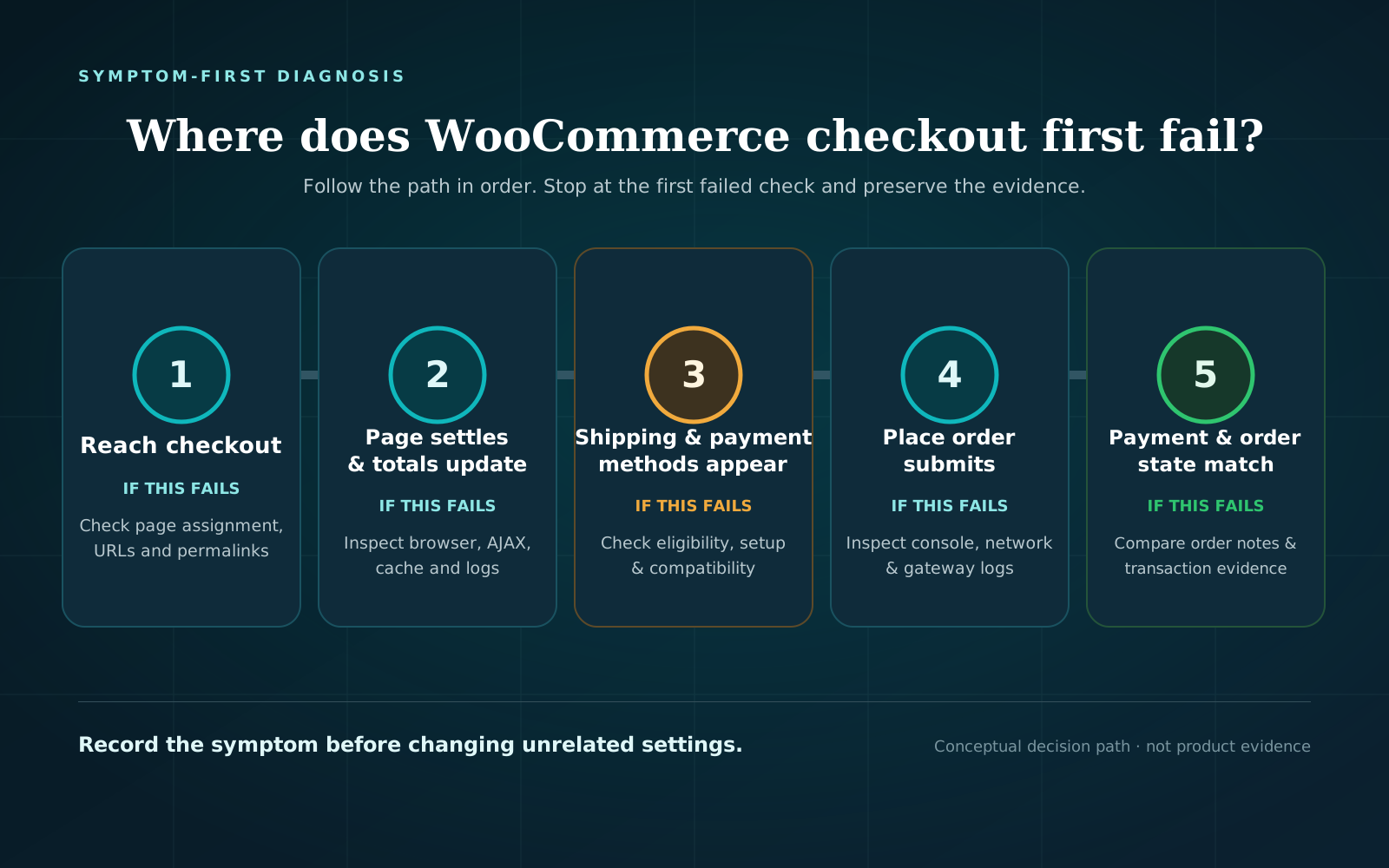
If WooCommerce shows an error but the gateway has no matching attempt, work backward from the Place order action.
Run one controlled reproduction with browser developer tools open. Check whether clicking Place order sends a request, whether required-field validation blocks it, and whether the first failed request has a safe-to-record status or error. Compare that timestamp with WooCommerce and server logs.
This branch is about submission, not a card decline. Follow the broader WooCommerce checkout troubleshooting path if the request never reaches the payment extension.
If payment failed but money was deducted
Treat “payment failed but money was deducted” as a reconciliation case, not as proof of either a completed charge or an incorrect customer report.
- Ask for the order number and approximate time, not card details.
- Find the exact gateway event by amount, currency, time, and safe customer reference.
- Record whether the gateway says authorized, processing, captured/succeeded, failed, canceled, or refunded.
- Compare its event ID and timestamp with WooCommerce Order Notes.
- Do not run another live charge while the first result is unresolved.
If the gateway shows authorized or processing, follow its documented timing and cancellation/capture rules. Do not ship merely because funds appear unavailable in the customer’s bank app.
If the gateway shows captured or succeeded while WooCommerce is Failed or has no matching order, preserve both timelines and contact the gateway or integration owner. Do not manually mark the order Processing until you have confirmed the amount, currency, transaction, customer, and fulfillment implications. Do not issue a refund based only on a WooCommerce label; refund the correct transaction through the approved gateway workflow once the facts are reconciled.
If the gateway shows failed or no payment, the customer’s bank may still be the right place to explain a temporary pending entry, but do not speculate about release timing. Give the customer the gateway’s safe reference and ask the gateway for the correct next step.
Diagnose repeated WooCommerce failed orders as a pattern
Several Failed orders do not automatically mean several customers were unable to pay. They may include repeated attempts by one buyer, abandoned payment windows, distinct declines, automated traffic, or a store-wide integration failure. If the public path itself fails repeatedly, separate that symptom from the payment record before considering WooCommerce checkout monitoring.
Build an attempt-level view before judging scope:
| Compare | Question |
|---|---|
| Order/customer/session | Are these retries for the same checkout or unique affected buyers? |
| Time window | Did failures start after a deployment, credential change, gateway incident, or no known change? |
| Gateway and code | Is one method or one exact error responsible? |
| Result | Do later attempts succeed, remain pending, or all fail? |
| Segment | Is the pattern limited by browser, device, country, currency, product, or guest/account state? |
| Gateway record | Does every WooCommerce failure have a matching gateway event? |
Stripe’s own decline-analysis guidance recommends examining unique declines separately from failed retries. That is vendor-specific guidance, but the underlying operational lesson is useful: do not count every attempt as a separate affected buyer.
Likewise, do not label a cluster as fraud from the order list alone. Suspicious names, repeated attempts, velocity, and risk signals require review in the gateway and security tools. Preserve evidence and apply the provider’s documented controls rather than deleting records or blocking broad customer groups on a guess.
Test the suspected fix safely
A good test reproduces the same failure class without risking a real charge.
Use the gateway’s documented test environment
Use only the installed gateway’s current sandbox or test mode, test credentials, and published test values. For example, Stripe provides test keys and test cards for declines and authentication scenarios and warns against testing with real card details. Use the staging-first procedure in how to test WooCommerce checkout safely when you need the full setup and cleanup sequence.
A sandbox does not prove the live payment network will behave identically. It does prove whether your integration handles the documented test result and moves the WooCommerce order through the expected state.
Record before testing:
- test/live mode;
- extension and WooCommerce versions;
- scenario and expected gateway result;
- expected WooCommerce order status and notes; and
- how temporary settings will be restored.
Isolate plugin or theme conflicts on staging
It’s important to have a backup and staging site for conflict testing. Reproduce the baseline there, switch to a default theme, and temporarily deactivate unrelated plugins while keeping WooCommerce and the required payment extension active. Restore components one at a time and rerun the same scenario.
Do not bulk-deactivate payment, security, subscription, tax, shipping, or fulfillment components on a production store. If the problem only occurs live, arrange a controlled maintenance window and rollback plan with the responsible developer, host, and gateway rather than improvising.
Verify the fix from checkout to gateway to order
Retest the original failure first. Changing the customer state, currency, gateway, product, or browser means you tested a different path.
- The original buyer scenario reaches the intended payment method.
- One documented test attempt creates exactly one expected gateway event.
- The gateway returns the expected success, decline, or authentication result.
- WooCommerce creates or updates the expected order once.
- Order status and Order Notes match the gateway event and timestamp.
- The customer sees a useful, non-sensitive next step.
- No duplicate authorization, capture, order, or email is created.
- Gateway, WooCommerce, PHP, and browser logs show no unexplained error at the retest time.
- One adjacent scenario—such as guest/account or mobile/desktop—is checked.
- Test mode, debug logging, plugin state, and other temporary controls are restored.
- The fix, evidence, retest time, and remaining untested cases are documented.
A passing sandbox test supports that scenario in that environment. It does not guarantee every live issuer, wallet, buyer, or asynchronous notification path.
When to escalate immediately
Bring in the payment provider, host, security provider, or a qualified WooCommerce developer when:
- the gateway shows an authorization or successful capture but WooCommerce shows Failed or no matching order;
- the refund, authorization, capture, or settlement state is unclear;
- many unique buyers receive the same gateway or API error;
- checkout or logs expose payment data, credentials, tokens, or customer information;
- gateway callbacks or API requests repeatedly fail and the exact code persists;
- the only next test would risk a live charge or interrupt production checkout; or
- the issue cannot be reproduced safely but reports continue.
Send a redacted evidence pack: order number, amount and currency, time zone, gateway event ID and status, WooCommerce status and Order Notes, exact error code, affected scenarios, recent changes, relevant safe log excerpts, and tests already completed.
Frequently asked questions
Why did WooCommerce mark the payment Failed?
WooCommerce uses Failed when payment failed or was declined and no payment was successfully made. The useful reason is usually in Order Notes and the matching gateway event. It might be a decline, incomplete customer action, expired payment window, or a gateway/integration error; the status alone does not select the cause.
Should I change a Failed order to Processing?
Not until the gateway confirms a successful payment for that exact order, amount, currency, and customer and you understand any fulfillment effects. A manual status change does not create a missing payment or repair an integration. Preserve the original notes and transaction evidence.
Can the customer retry a failed payment?
First check that the previous attempt is not authorized, processing, or captured. Then follow the installed gateway’s documented retry or payment-link flow. If the gateway gave a customer-action message, pass on that safe next step without exposing internal risk details.
Why are there many failed orders in WooCommerce?
The count can include retries, abandoned attempts, distinct buyer declines, suspicious traffic, or an integration failure. Group related attempts, compare unique buyers and exact error codes, and check whether later attempts succeeded before drawing a conclusion.
Can CheckoutWatch diagnose a failed payment?
The free public test can check the external product, cart, and checkout path to the payment step and may provide screenshot evidence after email confirmation. It does not submit payment, create an order, inspect the gateway dashboard, validate a charge, or diagnose an already failed transaction.
Reconcile first, then fix and retest
For a WooCommerce failed payment, the safest first question is not “Which plugin should I disable?” It is “What does the matching gateway event say?” Reconcile that event with Order Notes and the buyer-visible message, classify the failure, make one controlled change, and verify the full gateway-to-order result.
For a separate external check that the public buyer path can reach the payment step—without submitting payment or creating an order—use CheckoutWatch as one piece of the investigation.